How to Crop PDF Pages Free Online (2026)
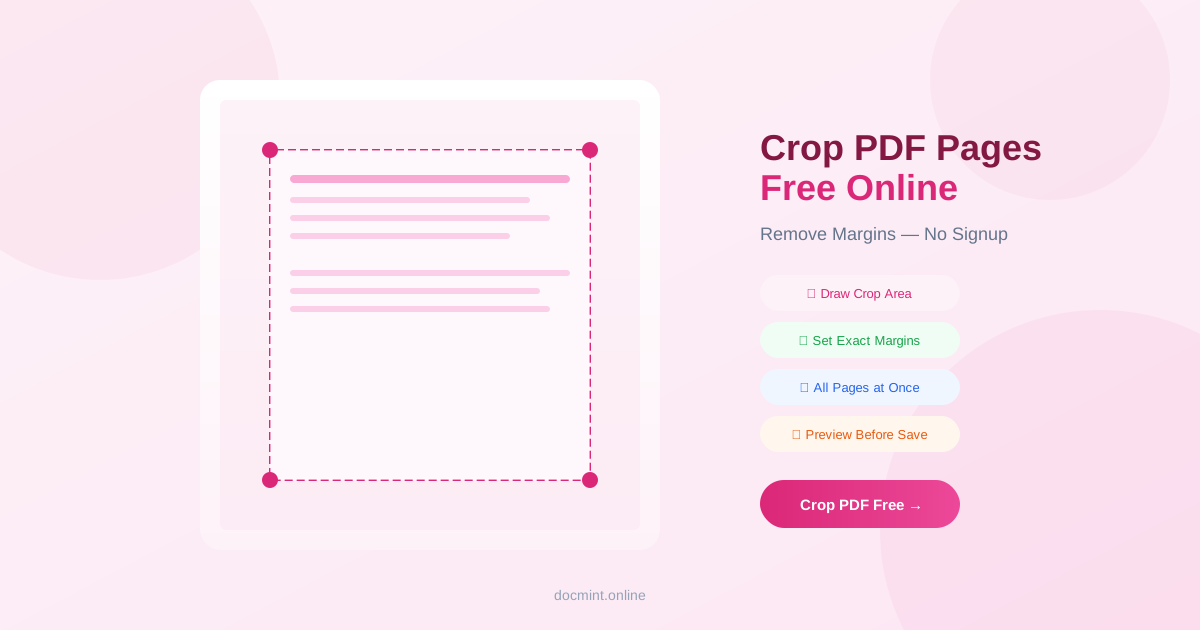
Quick answer: Use DocMint's Crop PDF tool to remove white margins, trim content, or resize pages — draw a crop area or enter exact margins. Free, no signup.
Why Crop a PDF?
Cropping is one of the most useful PDF editing operations. Common reasons to crop a PDF include:
- Remove excessive white margins: Tighten up the layout for better readability
- Remove scanner borders: Eliminate black edges from scanned documents
- Resize for different paper sizes: Crop A4 content to fit US Letter or vice versa
- Extract a specific area: Focus on a chart, table, or section of a page
- Prepare for e-readers: Crop margins for better display on Kindle or tablets
Crop vs Remove Pages
| Crop PDF | Remove Pages |
|---|---|
| Trims the edges of a page | Deletes entire pages |
| Same number of pages after | Fewer pages after |
| Changes page dimensions | Removes pages entirely |
| Use to fix margins or borders | Use to remove blank or unwanted pages |
Step-by-Step: Crop PDF Pages Free
- Go to DocMint Crop PDF — no account needed
- Upload your PDF (drag & drop or click to browse)
- Draw a crop rectangle on the page preview, or enter exact margin values (top, bottom, left, right)
- Preview the cropped result
- Choose to apply to all pages or specific pages
- Click Apply Crop and download
Privacy tip:
Keep a copy of your original PDF before cropping. DocMint does not store files — once you close the browser, the original cannot be recovered from our end.
Removing White Margins
The most common use case for PDF cropping is removing excessive white space around content. This is especially useful for:
- Academic papers with large margins
- Scanned documents with uneven borders
- PDFs exported from presentations with slide padding
- E-book PDFs being prepared for tablet reading
Use the "Auto-detect margins" feature to automatically find and remove white space, or manually enter the exact pixel or millimeter values for each margin.
Cropping for Different Paper Sizes
If you need to change the effective paper size of a PDF (e.g., from A4 to US Letter), cropping can help by adjusting the visible page area. For more precise resizing, combine cropping with DocMint's Organize PDF tool.
Tips for Scanned Documents
- Scanned pages often have black borders from the scanner lid — crop these off for a clean look
- Use consistent margin values across all pages for a uniform appearance
- After cropping scanned PDFs, run OCR to make the text searchable
- Use Compress PDF after cropping to reduce file size
FAQ
Is cropping a PDF permanent?
Yes. DocMint permanently modifies the page boundaries in the PDF. The cropped area is removed from view in all PDF viewers. Note that in some PDF editors, the hidden content may still exist in the file — for true content removal, use the Redact PDF tool.
Can I crop all pages or just a single page?
Both. DocMint lets you apply the same crop to all pages at once, or crop individual pages with different settings. This is useful for documents with mixed layouts.
Does cropping reduce the file size?
Cropping reduces the visible page area but may not significantly reduce file size, as the underlying content data may still be present. For size reduction, use DocMint's Compress PDF tool after cropping.
Can I crop scanned PDFs?
Yes. Cropping works on all PDFs including scanned documents. It's especially useful for removing black borders or scanner artifacts from scanned pages.
Can I undo a crop?
Once you download the cropped PDF, the crop is permanent in that file. Always keep a copy of the original before cropping. DocMint does not store your files, so the original is only on your device.
Crop PDF Pages Free — Instant
No signup. Draw crop area or set exact margins. Preview before download.
Crop PDF Free →