How to Convert PowerPoint to PDF Free Online (2026)
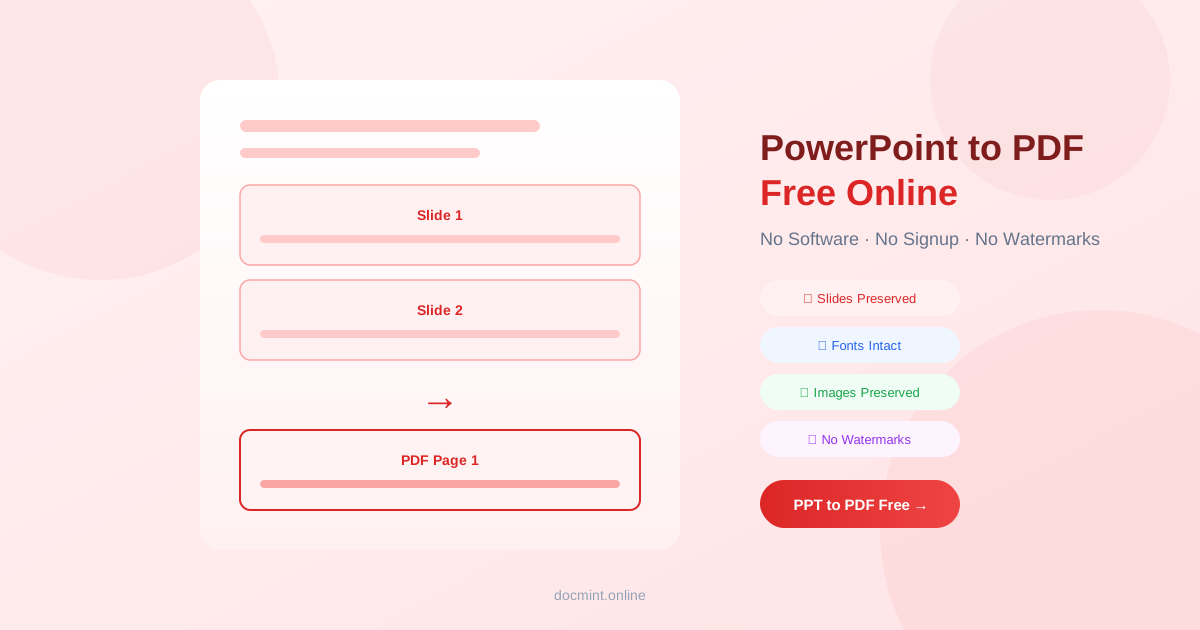
Quick answer: Use DocMint's PPT to PDF tool to convert any PowerPoint presentation to PDF — slides, fonts, and images preserved. Free, no signup, no watermarks.
Why Convert PowerPoint to PDF?
Converting your presentation to PDF before sharing has several advantages:
- Recipients can view it without PowerPoint installed
- Fonts and layouts look identical on every device
- Prevents accidental editing of your slides
- Smaller file size than PPTX for email sharing
- Required format for many submission portals and conference systems
What Gets Preserved
DocMint's PPT to PDF converter preserves:
- Slide layouts: All slide designs, backgrounds, and themes
- Fonts: All text renders correctly, including custom fonts
- Images: Photos, icons, and graphics at full quality
- Charts and tables: Data visualizations are embedded as images
- Speaker notes: Optionally include speaker notes as a separate section
Step-by-Step: Convert PowerPoint to PDF Free
- Go to DocMint PPT to PDF — no account needed
- Upload your PPTX or PPT file (drag & drop or click to browse)
- Click Convert to PDF
- Download your PDF — no watermarks, no signup required
Privacy tip:
Presentations often contain confidential business information. DocMint processes your file securely and does not retain it after conversion.
Handling Animations and Transitions
PDF is a static format — it cannot display animations or slide transitions. When converting PPT to PDF:
- Each slide is captured in its final state (after all animations have played)
- Animated elements appear in their end position
- Slide transitions are not shown — pages simply follow each other
- If animations are critical, share the original PPTX file for live presentations
PPT to PDF vs PDF to PPT — When to Use Which
| Use PPT to PDF when... | Use PDF to PPT when... |
|---|---|
| Sharing a finished presentation | You need to edit a PDF as slides |
| Submitting to a portal or system | Repurposing a report as a deck |
| Archiving a presentation | Adding animations to PDF content |
| Reducing file size for email | Updating an old presentation |
After Converting
Once you have your PDF, use these DocMint tools to finalize it:
- Compress PDF — reduce file size for email or upload
- Protect PDF — add password before sharing with clients
- Merge PDF — combine with handouts or appendices
- PDF to PPT — convert back to PowerPoint if you need to edit
FAQ
Does formatting stay intact when converting PowerPoint to PDF?
Yes. DocMint preserves slide layouts, fonts, images, colors, and backgrounds. Each slide becomes a PDF page that looks identical to the original PowerPoint slide.
What happens to animations and transitions?
Animations and slide transitions are not preserved in PDF format — PDFs are static documents. Each slide is captured in its final state. If you need to show animations, share the original PPTX file instead.
Can I convert PowerPoint to PDF on a Mac?
Yes. DocMint works in any browser on Mac, Windows, iPhone, iPad, and Android. No PowerPoint or software installation required.
Is there a file size limit for PPT to PDF conversion?
DocMint supports PPTX files up to 100MB. For very large presentations with many high-resolution images, consider compressing images in PowerPoint before uploading.
Can I password protect the PDF after converting?
Yes. After converting your presentation to PDF, use DocMint's Protect PDF tool to add password encryption before sharing with clients or stakeholders.
Convert PowerPoint to PDF Free — Instant
No signup. No watermarks. Slides, fonts, and images preserved.
PPT to PDF Free →