How to Convert PDF to Excel — Free, Tables Intact
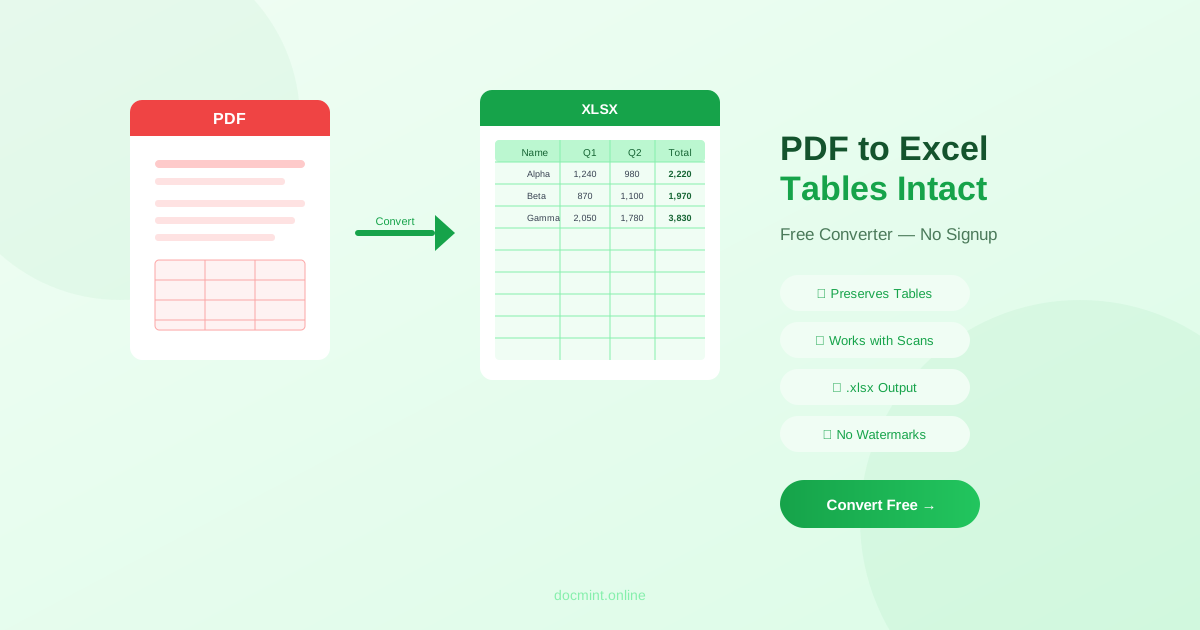
Quick answer: Use DocMint's free PDF to Excel converter — upload your PDF, click convert, and download an editable .xlsx file in under 2 minutes. No signup, no watermarks.
Receiving financial reports, invoices, or data tables as PDFs is frustrating when you need to work with the numbers. Manually retyping data is slow and error-prone. Converting the PDF to Excel directly is the right solution — and it's free.
When to Convert PDF to Excel
- Bank statements you need to analyze or categorize
- Financial reports with tables you want to chart
- Invoices you need to import into accounting software
- Survey results or data exports saved as PDF
- Price lists or product catalogs in PDF format
- Government or research data published as PDF tables
Step-by-Step: Convert PDF to Excel for Free
- Go to DocMint PDF to Excel — no account needed
- Upload your PDF (drag & drop or click to browse)
- Click "Convert to Excel"
- Wait a few seconds while the tool extracts tables and data
- Download your .xlsx file
- Open in Excel, Google Sheets, or LibreOffice
Privacy note:
DocMint converts PDFs in your browser. Financial documents, bank statements, and sensitive data never leave your device.
How PDF to Excel Conversion Works
PDFs don't store data in rows and columns — they store the visual position of every character on the page. A PDF converter has to:
- Detect which text elements are part of a table
- Identify row and column boundaries
- Group text into cells
- Output the result as a structured spreadsheet
For PDFs with clean, well-defined tables, this works very well. For complex layouts with merged cells, nested tables, or unusual formatting, some manual cleanup may be needed.
Converting Scanned PDFs to Excel
Scanned PDFs are images — there's no actual text data, just pixels. To convert a scanned PDF to Excel, you need OCR (Optical Character Recognition) to first read the text from the image.
DocMint's PDF to Excel tool includes OCR for scanned documents. Alternatively, you can:
- First run OCR on the PDF to create a text-based PDF
- Then convert the OCR'd PDF to Excel
This two-step approach often gives better results for complex scanned tables.
Tips for Better Conversion Results
- Use the original PDF — not a scanned copy — whenever possible
- Check for merged cells in the original and note them before converting
- Remove headers and footers that repeat on every page using page editing tools if they interfere with table detection
- Split large PDFs into sections if they contain multiple different tables
PDF to Excel vs PDF to Word — Which Should You Use?
Use PDF to Excel when your PDF contains primarily numerical data, tables, or structured data you need to calculate or analyze.
Use PDF to Word when your PDF contains primarily text, paragraphs, and mixed content you need to edit.
Frequently Asked Questions
Can I convert a scanned PDF to Excel?
Yes, but you need OCR (Optical Character Recognition) first. DocMint's PDF to Excel tool uses OCR to recognize text in scanned PDFs before converting the data to spreadsheet format.
Will the table formatting be preserved when converting PDF to Excel?
For PDFs with clearly defined tables, the conversion preserves rows, columns, and cell data well. Complex multi-column layouts or merged cells may need minor cleanup in Excel after conversion.
Is it free to convert PDF to Excel?
Yes. DocMint's PDF to Excel converter is completely free with no file limits, no signup, and no watermarks on the output.
What file format does the converted file use?
The output is an .xlsx file compatible with Microsoft Excel, Google Sheets, LibreOffice Calc, and all major spreadsheet applications.
Why does my converted Excel file look wrong?
PDFs don't store data in a structured way — they store visual positions of text. If the original PDF has unusual formatting, merged cells, or images instead of text, the conversion may need manual cleanup. Using a well-structured PDF gives the best results.