How to Convert PDF to JPG Free Online — Every Page, Instant
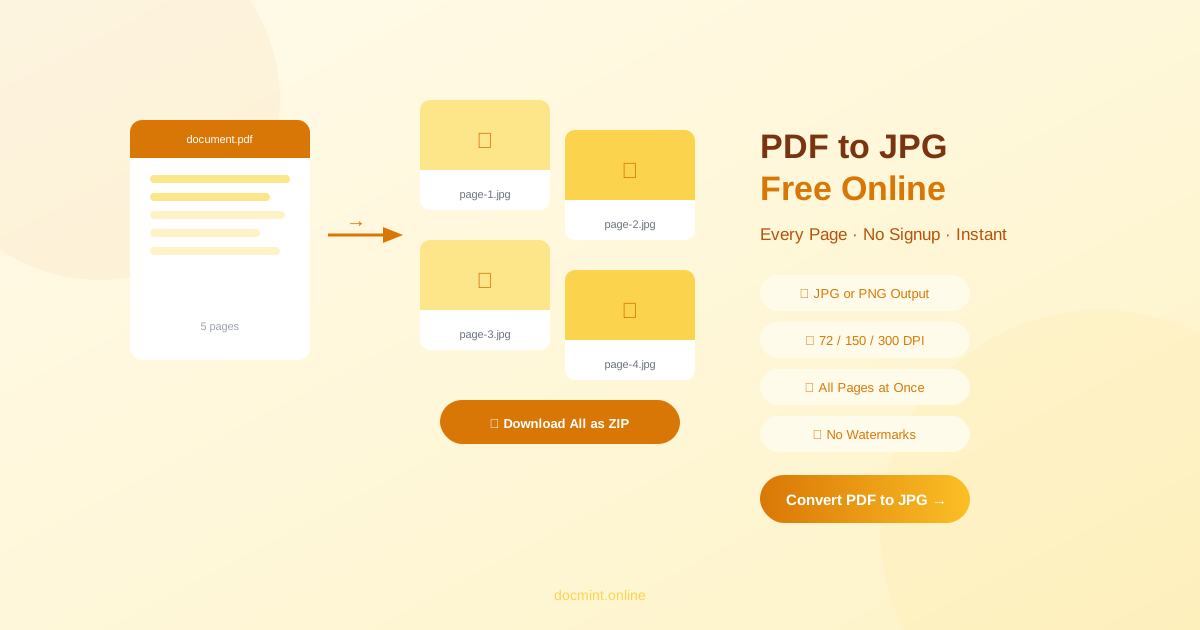
Quick answer: Use DocMint's PDF to Image tool to convert every page of any PDF to high-quality JPG or PNG — free, no signup, no watermarks, and your file never leaves your browser.
When to Convert PDF to Image
Converting PDF pages to images is useful in many situations:
- Embedding PDF content in presentations, websites, or social media
- Sharing a single page without sending the entire PDF
- Creating thumbnails or previews of PDF documents
- Uploading to platforms that accept images but not PDFs
- Archiving documents in a universally viewable format
JPG vs PNG — Which to Choose
| Format | Compression | Best For | File Size |
|---|---|---|---|
| JPG | Lossy | Photos, complex graphics | Smaller |
| PNG | Lossless | Text, diagrams, sharp lines | Larger |
For most document conversions, JPG at 150 DPI is the right choice. Use PNG when your PDF contains text or diagrams that need to stay sharp.
Step-by-Step: Convert PDF to JPG Free
- Go to DocMint PDF to Image — no account needed
- Upload your PDF (drag & drop or click to browse)
- Choose JPG or PNG as the output format
- Select your DPI (150 DPI recommended for most uses)
- Click Convert
- Download individual pages or all pages as a ZIP
Privacy tip:
DocMint converts your PDF to images entirely in your browser using PDF.js. Your file is never uploaded to any server — safe for confidential documents.
DPI Settings Explained
DPI (dots per inch) controls the resolution of the output images:
- 72 DPI: Screen resolution — smallest file size, suitable for web thumbnails and previews
- 150 DPI: Standard resolution — good balance of quality and file size, suitable for most sharing and embedding
- 300 DPI: Print resolution — highest quality, suitable for professional printing and archiving
Batch Converting Multiple PDFs
If you need to convert multiple PDFs to images, process them one at a time with DocMint. For each PDF:
- Upload the PDF and convert all pages
- Download the ZIP archive of all page images
- Repeat for the next PDF
You can also merge multiple PDFs into one before converting if you want all pages in a single batch.
Tips for Best Quality
- Use 300 DPI for any images you plan to print
- Use PNG format for PDFs with text to avoid JPG compression artifacts on letters
- If the source PDF is low quality, increasing DPI won't improve it — the output quality is limited by the source
- For very large PDFs, compress the PDF first to speed up conversion
- Need to go the other way? Use PDF to Word to convert to an editable document instead
FAQ
What is the best image format for PDF pages — JPG or PNG?
JPG is best for PDFs with photos and complex graphics — it produces smaller files with good visual quality. PNG is better for PDFs with text, diagrams, or sharp lines because it uses lossless compression and preserves crisp edges. For most document conversions, JPG at 150 DPI is the right choice.
Can I choose the quality and DPI when converting PDF to image?
Yes. DocMint lets you choose between 72 DPI (screen), 150 DPI (standard), and 300 DPI (print quality). Higher DPI produces sharper images but larger file sizes. For most uses, 150 DPI is the best balance.
Can I convert a multi-page PDF to images?
Yes. DocMint converts every page of your PDF into a separate image file. You can download all pages as a ZIP archive or download individual pages.
How large will the converted image files be?
File size depends on the PDF content and DPI setting. A typical A4 page at 150 DPI JPG is around 200-500KB. At 300 DPI PNG, the same page can be 2-5MB. High-DPI conversions of image-heavy PDFs will produce larger files.
Can I convert a password-protected PDF to images?
No. Password-protected PDFs must be unlocked before conversion. Use DocMint's Unlock PDF tool to remove the password, then convert to images.
Convert PDF to JPG Free — Every Page
No signup. No watermarks. Files stay in your browser.
Convert PDF to Image Free →