How to Merge PDF Files on Mac — 3 Free Methods (2026)
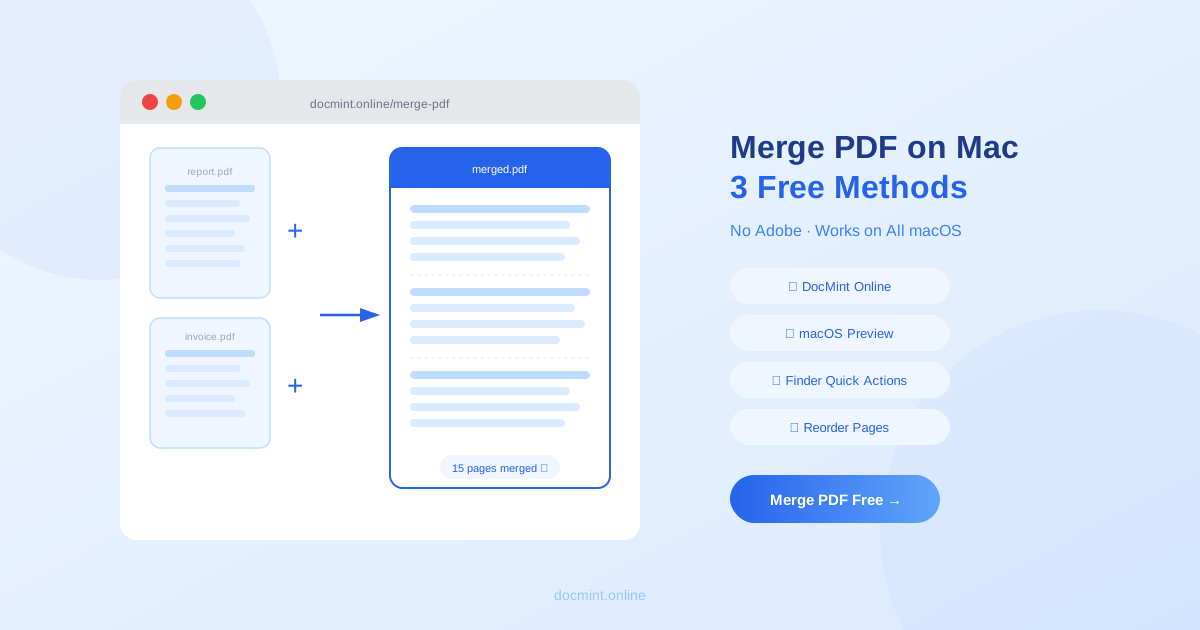
Quick answer: Use DocMint's Merge PDF tool for the easiest method — works on all Mac versions, supports page reordering, free with no signup. Or use macOS Preview (built-in) or Finder Quick Actions (Mojave+).
3 Methods to Merge PDFs on Mac
Mac users have three free options for merging PDFs, each with different strengths:
- DocMint Online — works on all Macs, supports reordering, handles large files
- macOS Preview — built-in, no internet needed, good for simple merges
- Finder Quick Actions — fastest for basic merges, requires macOS Mojave or later
Method 1: DocMint Online (Recommended — Works on All Mac)
DocMint works in any browser on any Mac, regardless of macOS version. It supports reordering pages from multiple PDFs before merging — something Preview and Finder cannot do easily.
- Go to DocMint Merge PDF in Safari, Chrome, or Firefox
- Click Upload Files or drag and drop your PDFs
- Drag pages in the preview panel to set the order you want
- Click Merge PDF
- Download the merged PDF
Privacy tip:
DocMint merges your PDFs entirely in your browser. Your files are never uploaded to any server — safe for confidential documents.
Method 2: macOS Preview (Built-In)
Preview is installed on every Mac and works offline. It's reliable for simple merges of a few files.
- Open the first PDF in Preview (double-click the file)
- Go to View > Thumbnails to show the page sidebar
- Drag additional PDF files from Finder into the thumbnail sidebar
- Drag thumbnails to reorder pages as needed
- Go to File > Export as PDF and save the merged file
Note: Do not use File > Save — this modifies the original file. Always use Export as PDF to create a new merged document.
Method 3: Finder Quick Actions (macOS Mojave+)
The fastest method for a basic merge with no page reordering needed.
- In Finder, select all the PDF files you want to merge (hold Cmd and click each file)
- Right-click the selection
- Choose Quick Actions > Create PDF
- A new merged PDF is created in the same folder
Note: Files are merged in the order they appear in Finder (alphabetical by default). Rename files with a number prefix (1-, 2-, 3-) to control the order.
Comparison: 3 Methods for Merging PDFs on Mac
| Feature | DocMint | Preview | Finder Quick Actions |
|---|---|---|---|
| Works on all macOS versions | ✅ | ✅ | ⚠️ Mojave+ |
| Requires internet | ✅ | ❌ | ❌ |
| Page reordering | ✅ Easy | ✅ Manual | ❌ |
| Handles large files | ✅ | ⚠️ Can be slow | ⚠️ Can fail |
| No software install | ✅ | ✅ Built-in | ✅ Built-in |
| Speed | Fast | Medium | Fastest |
Tips for Merging Large PDFs on Mac
- Compress each PDF before merging to keep the final file size manageable
- If Preview crashes or freezes with large files, use DocMint instead
- Use Remove Pages to delete unwanted pages from each PDF before merging
- After merging, use Organize PDF to fine-tune page order
- Need to do the reverse? Use Split PDF to separate a merged document back into individual files
FAQ
Can I merge PDFs on Mac without Adobe?
Yes. macOS has two built-in methods: Preview (available on all Mac versions) and Finder Quick Actions (macOS Mojave and later). You can also use DocMint online for free — no software installation needed, works on any Mac regardless of macOS version.
How do I merge PDFs using Preview on Mac?
Open the first PDF in Preview, then go to View > Thumbnails to show the sidebar. Drag additional PDF files into the thumbnail sidebar in the order you want. Then go to File > Export as PDF to save the merged document.
What is the best free method to merge PDFs on Mac?
DocMint is the most reliable method because it works on all macOS versions, supports reordering pages before merging, and handles large files well. Preview works well for simple merges but can be unreliable with complex PDFs or many files.
Can I merge PDFs on older versions of macOS?
Yes. Preview has been available on macOS for many years and works on older versions. DocMint works in any modern browser (Safari, Chrome, Firefox) regardless of macOS version. Finder Quick Actions require macOS Mojave (10.14) or later.
Can I reorder pages when merging PDFs on Mac?
Yes. DocMint lets you drag and reorder pages from all uploaded PDFs before merging. In Preview, you can drag thumbnails to reorder pages. Finder Quick Actions merge files in the order they are selected and do not support reordering.
Merge PDFs on Mac Free — No Adobe Needed
No signup. Works on all Mac versions. Files stay in your browser.
Merge PDF Free →