How to Add Page Numbers to a PDF Free Online (2026)
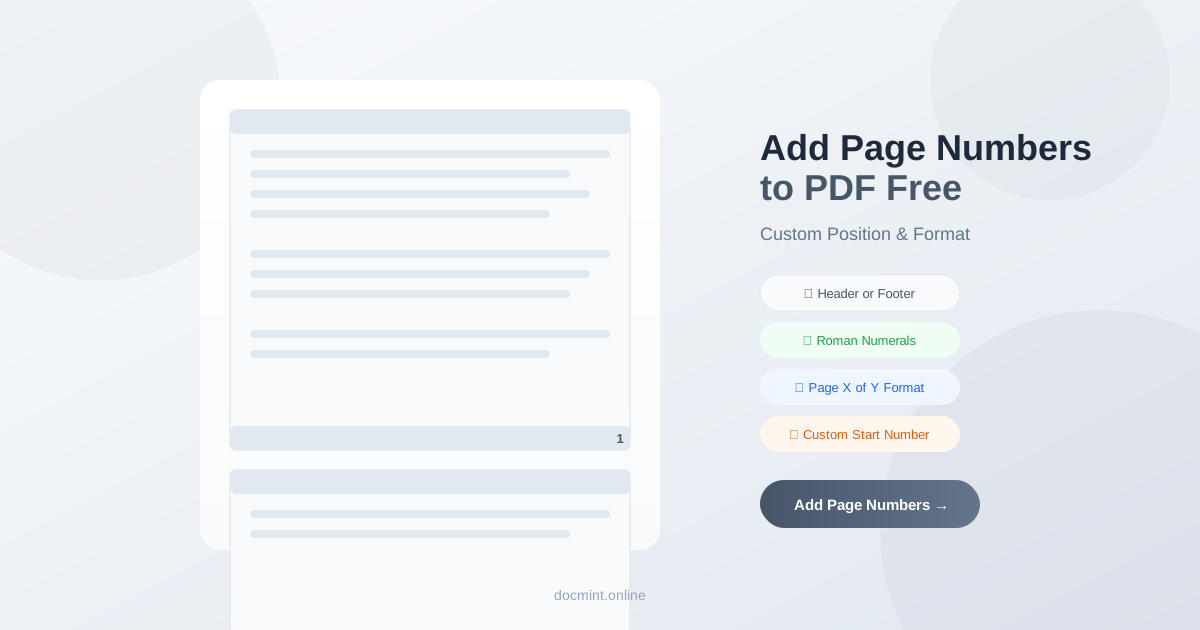
Quick answer: Use DocMint's Add Page Numbers tool to add page numbers to any PDF — choose position, format, and starting number. Free, no signup.
Why Add Page Numbers to a PDF?
Page numbers are essential for professional documents:
- Make it easy to reference specific pages in meetings or reviews
- Required for legal filings, academic papers, and formal reports
- Help readers navigate long documents
- Ensure correct page order when printing
Position Options
DocMint gives you full control over where page numbers appear:
- Header positions: Top-left, top-center, top-right
- Footer positions: Bottom-left, bottom-center, bottom-right
- Most common: Bottom-center or bottom-right for standard documents
- Legal documents: Bottom-center is the standard for court filings
Number Format Options
| Format | Example | Best For |
|---|---|---|
| Arabic numerals | 1, 2, 3... | Most documents |
| Roman numerals (lower) | i, ii, iii... | Prefaces, front matter |
| Roman numerals (upper) | I, II, III... | Formal reports |
| Page X of Y | Page 1 of 24 | Standalone documents |
Step-by-Step: Add Page Numbers to a PDF
- Go to DocMint Add Page Numbers — no account needed
- Upload your PDF (drag & drop or click to browse)
- Choose position: header or footer, left/center/right
- Select number format and set the starting number
- Optionally skip the first page (for cover pages)
- Click Apply and download your numbered PDF
Privacy tip:
Your PDF is processed in your browser. No file is uploaded to any server — your document stays private.
Tips for Long Documents
- Skip the cover page: Set the start page to 2 so the cover doesn't get a number
- Custom start number: If this PDF is chapter 3 starting at page 47, set the start number to 47
- Use "Page X of Y" for standalone reports: Readers immediately know the total length
- After adding numbers, use Merge PDF to combine with other sections
- Use Organize PDF to reorder pages before numbering
FAQ
Can I choose the position of page numbers?
Yes. DocMint lets you place page numbers in the header or footer, and choose left, center, or right alignment. Common positions are bottom-center or bottom-right.
Can I set a custom starting number?
Yes. You can start numbering from any number — useful when your PDF is part of a larger document and you need page numbers to continue from a previous section.
Does DocMint support Roman numerals?
Yes. DocMint supports multiple number formats: standard Arabic numerals (1, 2, 3), Roman numerals (i, ii, iii or I, II, III), and the "Page X of Y" format.
Can I add page numbers to specific pages only?
Yes. You can specify a page range to number, or skip the first page (useful for cover pages or title pages that should not show a number).
Can I remove page numbers after adding them?
Page numbers added by DocMint are embedded into the PDF. To remove them, you would need to use a PDF editor. We recommend previewing the result before downloading to ensure the placement is correct.
Add Page Numbers to PDF Free — Instant
No signup. Choose position, format, and start number.
Add Page Numbers Free →