How to Add a Watermark to a PDF Free Online (2026)
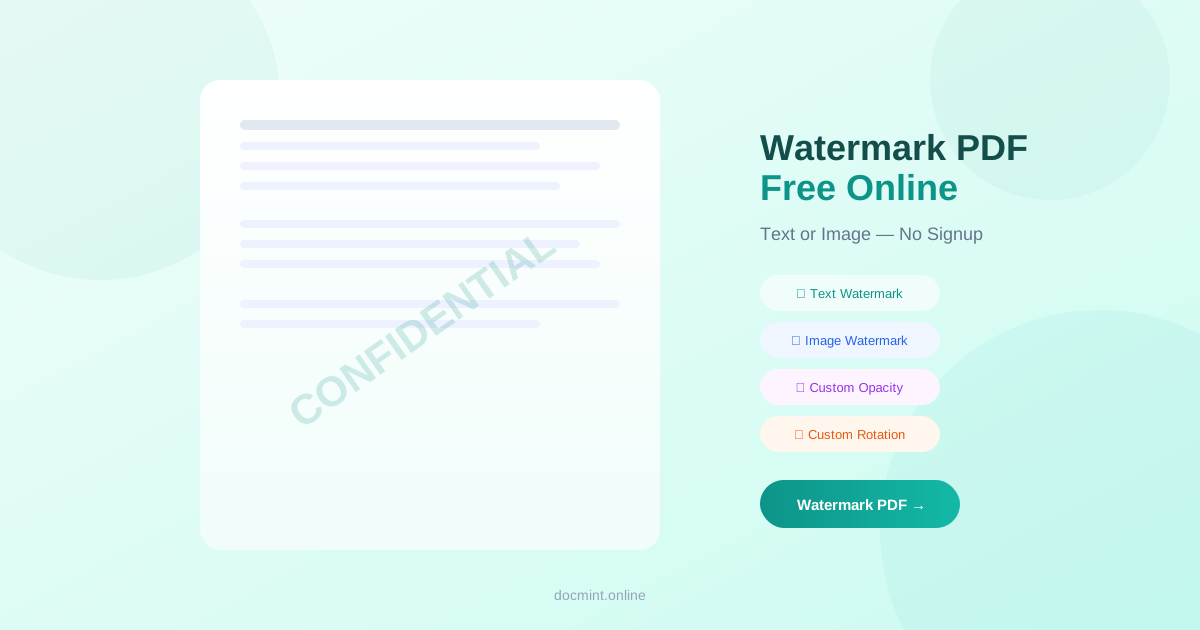
Quick answer: Use DocMint's Watermark PDF tool to add custom text or image watermarks to any PDF — set position, opacity, and rotation for free, no signup.
Why Add a Watermark to a PDF?
Watermarks serve several important purposes for document management and protection:
- Mark document status: Label drafts, proofs, or confidential documents clearly
- Brand protection: Add your logo to documents you share externally
- Discourage unauthorized copying: Visible watermarks deter misuse of your content
- Track document distribution: Add recipient-specific watermarks to identify leaks
Text vs Image Watermarks
| Text Watermark | Image Watermark |
|---|---|
| Type any text (DRAFT, CONFIDENTIAL) | Upload PNG or JPG logo |
| Choose font, size, color | Resize and reposition freely |
| Best for status labels | Best for branding |
| Fully customizable opacity | Supports transparent PNG |
Step-by-Step: Add a Watermark to a PDF
- Go to DocMint Watermark PDF — no account needed
- Upload your PDF (drag & drop or click to browse)
- Type your watermark text or upload a logo image
- Set position (center, top-left, bottom-right, etc.)
- Adjust opacity (30% is typical for diagonal watermarks)
- Set rotation (45° diagonal is the most common)
- Click Apply Watermark and download
Privacy tip:
For maximum document security, combine watermarking with password protection. This prevents both unauthorized access and easy removal of the watermark.
Watermark Position and Opacity Guide
- Center diagonal (45°, 30% opacity): Standard for DRAFT and CONFIDENTIAL labels
- Bottom center (0°, 20% opacity): Subtle branding watermark
- Top-right corner (0°, 50% opacity): Logo placement for shared documents
- Tiled pattern: Repeat watermark across all pages for maximum visibility
Common Watermark Use Cases
- DRAFT: Mark documents that are not yet final
- CONFIDENTIAL: Label sensitive business or legal documents
- SAMPLE: Watermark portfolio or preview documents
- Company logo: Brand all externally shared PDFs
- DO NOT COPY: Deter unauthorized reproduction
Can Watermarks Be Removed?
Watermarks added by DocMint are embedded directly into the PDF page content, not as a separate layer. This makes them significantly harder to remove than watermarks added as annotations. For the highest level of protection, also use password protection and remove metadata before sharing.
FAQ
Can I add an image watermark to a PDF?
Yes. DocMint supports both text watermarks (like "CONFIDENTIAL" or "DRAFT") and image watermarks (like a company logo). Upload your PNG or JPG logo and position it anywhere on the page.
Is the watermark permanent?
Yes. The watermark is permanently embedded into the PDF pages. It cannot be removed by simply selecting and deleting it in a standard PDF viewer.
Can watermarks be removed from a PDF?
Watermarks added by DocMint are embedded into the page content, making them difficult to remove without specialized software. For maximum security, combine watermarking with password protection.
Can I watermark multiple pages at once?
Yes. DocMint applies the watermark to all pages in the PDF simultaneously. You can also choose to apply it to specific page ranges if needed.
Can I control opacity and rotation?
Yes. DocMint lets you set the watermark opacity (0-100%) and rotation angle (0-360°). A diagonal watermark at 45° with 30% opacity is the most common professional setting.
Add Watermark to PDF Free — Instant
No signup. Custom text or logo. Position, opacity, rotation.
Watermark PDF Free →