How to Split a PDF into Multiple Files
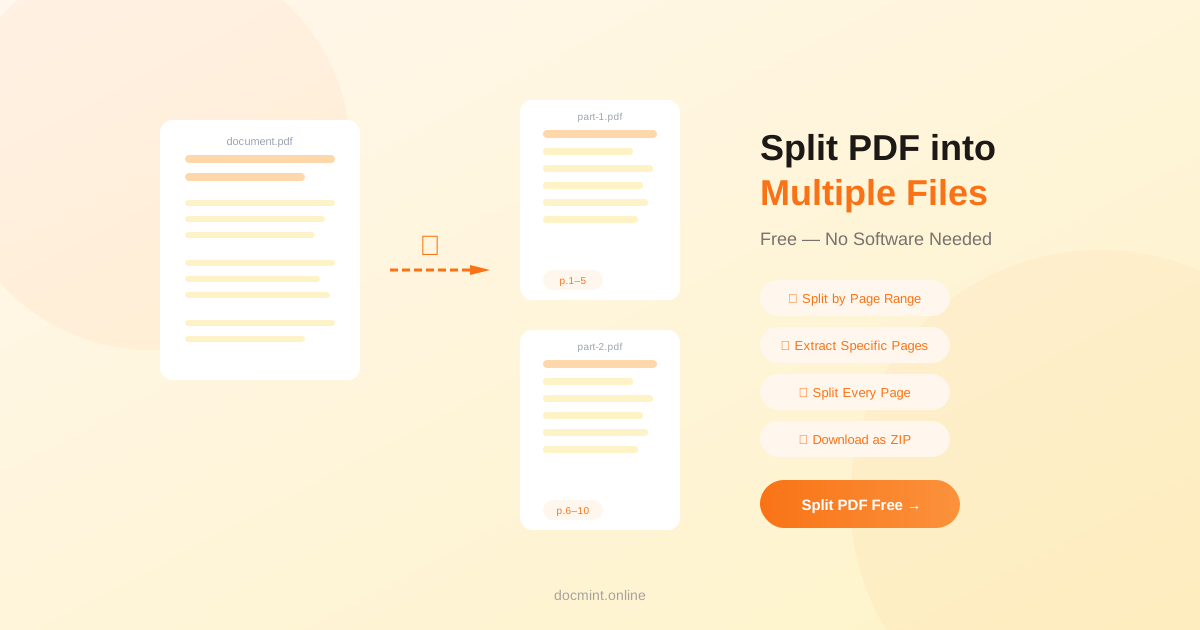
Quick answer: Use DocMint's free Split PDF tool — upload your PDF, choose your split method (by range, specific pages, or every page), and download in seconds. No software, no signup.
Whether you need to extract a single chapter from a report, separate invoices from a batch file, or break a large PDF into smaller chunks for email, splitting a PDF is one of the most common document tasks. Here's how to do it for free.
3 Ways to Split a PDF
1. Split by Page Range
The most flexible option. Define exactly which pages go into each output file. For example, pages 1–10 become File 1, pages 11–20 become File 2, and so on.
Best for: Splitting chapters, separating sections of a report, dividing a contract into parts.
2. Extract Specific Pages
Pick individual pages (e.g., pages 3, 7, and 15) and extract them into a single new PDF. Useful when you only need certain pages from a large document.
Best for: Extracting a specific form, pulling out key pages from a presentation, sharing only relevant sections.
3. Split Every Page into a Separate File
Automatically creates one PDF per page. A 20-page document becomes 20 individual PDFs.
Best for: Batch processing, separating scanned documents, creating individual page archives.
Step-by-Step: Split a PDF for Free
- Go to DocMint Split PDF — no account needed
- Upload your PDF (drag & drop or click to browse)
- Choose your split method: By Range, Extract Pages, or Every Page
- Enter your page numbers or ranges
- Click "Split PDF"
- Download individual files or the full ZIP archive
Privacy note:
DocMint splits PDFs entirely in your browser. Your document never gets sent to any server — important when splitting confidential contracts, medical records, or financial documents.
How to Split a PDF on Different Devices
On Windows or Mac
Open DocMint Split PDF in any browser — Chrome, Firefox, Safari, or Edge. No software installation required. The tool runs entirely in your browser.
On iPhone or Android
DocMint works on mobile browsers. Open the Split PDF tool on your phone, upload from your Files app or Google Drive, and download the split files directly to your device.
Using Adobe Acrobat (Paid)
If you have Adobe Acrobat Pro, go to Tools → Organize Pages → Split. This works well but requires a paid subscription ($19.99/month). For most users, a free browser tool is the better choice.
Common Use Cases for Splitting PDFs
Splitting a Scanned Document
Scanners often create one large PDF from multiple documents. Split it into individual files for each document, then run OCR to make them searchable.
Extracting Pages to Share
Need to share only the executive summary from a 50-page report? Extract pages 1–3 into a new PDF and share just that.
Reducing File Size for Email
If a PDF is too large to email, split it into smaller parts. Alternatively, try compressing the PDF first — you may not need to split at all.
Separating Invoices or Forms
Batch-scanned invoices often arrive as one PDF. Split every page into a separate file to process them individually.
After Splitting: What to Do Next
- Merge PDFs if you need to recombine files in a different order
- Compress the split files if they're still large
- Password-protect sensitive split documents
- Run OCR on scanned pages to make text searchable
Frequently Asked Questions
Can I split a PDF into individual pages?
Yes. DocMint's Split PDF tool lets you extract every page as a separate PDF file, or choose specific pages to extract into one or more new documents.
How do I split a PDF by page range?
In DocMint's Split PDF tool, select "Custom ranges" and enter the page ranges you want — for example, pages 1-5 as one file and pages 6-10 as another.
Is there a file size limit for splitting PDFs?
DocMint processes PDFs in your browser, so there's no server-side file size limit. Very large PDFs (500MB+) may be slower depending on your device's memory.
Can I split a password-protected PDF?
You need to unlock the PDF first. Use DocMint's Unlock PDF tool to remove the password, then split the file.
Will splitting a PDF reduce its quality?
No. Splitting only separates pages — it does not re-compress or alter the content. The output files are identical in quality to the original.